
Primacy effect: first impressions count (with tips on how to use it)
Are you aware that the first impression you make with your product or service plays a decisive role...
What affect heuristics have to do with trust, purchasing decisions and crises

In the dynamic world of online marketing, professionals are constantly looking for innovative approaches to get their message out effectively. One of these powerful...
Evaluation of results in GA 4
Evaluation of results with GA 4 IMPORTANT NOTE:The procedure for evaluating results in GA4 has changed slightly. The previous evaluation still works as usual. However, the new procedure is necessary to use the upcoming GA4 evaluation directly in Varify.io. If you have any questions, please contact our support team. Table of contents Short & sweet As soon as you have Varify.io® [...]
The decoy effect: psychological pricing with decoy logic
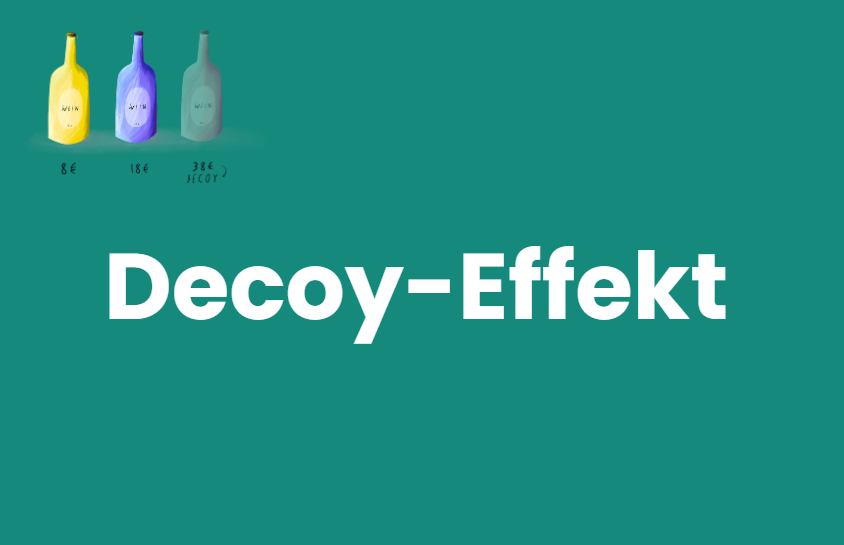
The main goal of e-commerce is to persuade customers to buy products or services. One effective method to achieve this goal is the use of cognitive...
Code Helpers
Code Helpers Table of Contents Short & sweet The Code Helpers help you as a web developer to set up A/B tests, especially when developing for single page applications. JavaScript Helper functions waitFor -> Wait for elements in the DOM The waitFor function waits for a defined element with the help of a mutation observer. As soon as new elements are added to the [...]
Parameters & URL Targeting
Parameters & URL Targeting Table of contents Short & sweet NOTE: As of December 2023, the parameters and URL targeting forms no longer exist in this presentation. However, you can still use the functions described here. What exactly has changed and links to the corresponding documentation can be found here. NEW Testing parameters With the "Parameters" setting [...]
A/B Testing: Create experiment
A/B Testing: Create an experiment In a nutshell With Varify.io® you can create and start your experiments in no time at all. First create a new variant and save it. You can then make various settings for your experiment in the dashboard. Finally, start the experiment by defining a page targeting and pressing the Start button. Step-by-step tutorialStarting and stopping [...]
Tracking with Varify.io
Tracking with Varify.io Table of contents Short & sweet Under A/B Testing Options, you set up the tracking of your experiments with the Tracking Setup Wizard. Here you specify which web analytics tool is used to analyze your A/B test results. The wizard guides you through the setup and helps you to select the right option. Step-by-Step TutorialAuto-Setup with the Tracking Setup Wizard [...]
Add JS
Add JavaScript Short & sweet The Add JS function allows you to add JavaScript code to your variant. This function is intended for experienced users with programming experience. With a right click in the form you also have the possibility to format the code. Important note: It is not possible to use the visual editor to make changes to the [...]
Add CSS
Add CSS Short & sweet The Add CSS function allows you to add CSS code to your variant. This function is intended for experienced users with programming experience. With a right click in the form you also have the possibility to format the code. How to use the function