
Google Signals
Table of contents
In short
Google Signals enables the collection of cross-device user data in Google Analytics in order to enable analyses and more targeted remarketing. If Google Signals is activated, audience data is partially extrapolated by Google.
Google Signals and extrapolation of data
Under "Admin Settings > Data collection" you can check whether you have activated Google Signals.
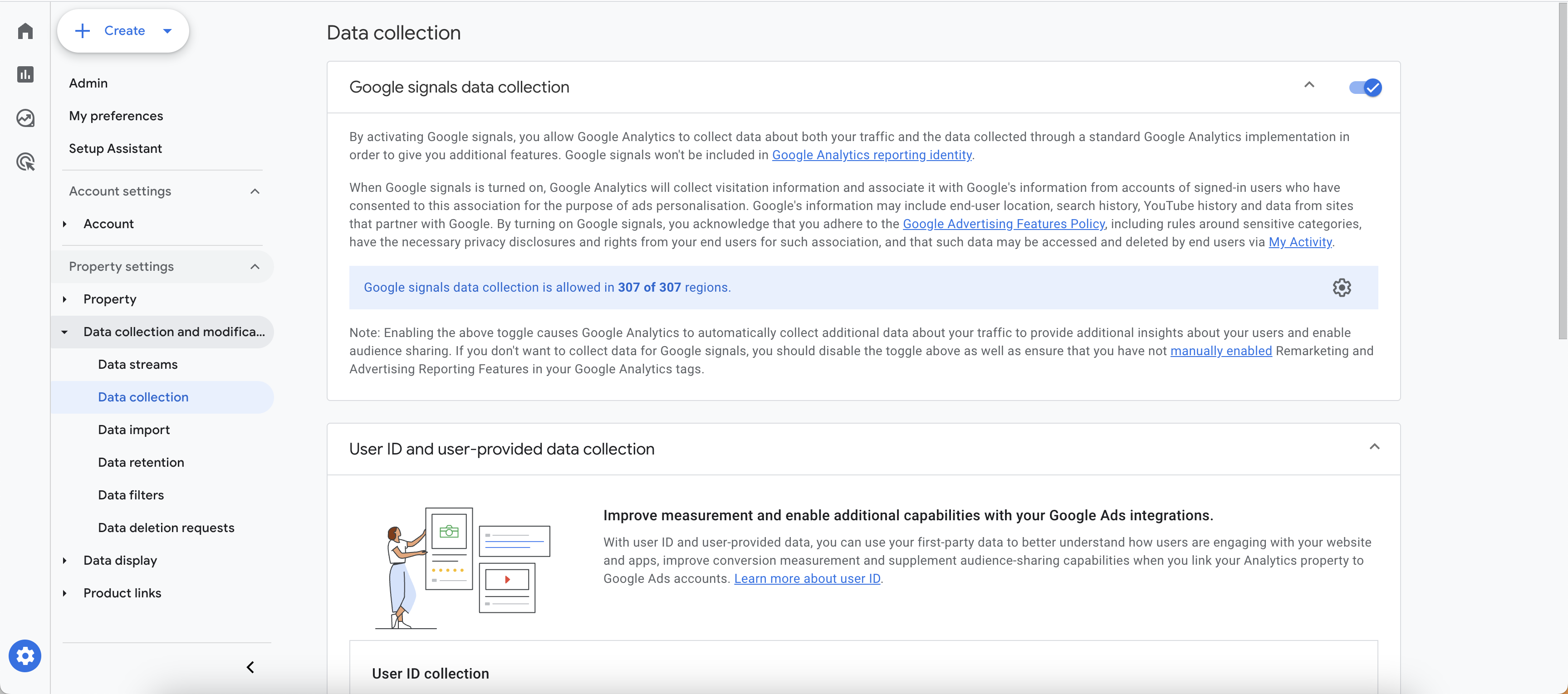
If Google Signals is activated, audience data in Google Analytics 4 is partially extrapolated, which can lead to an over- or underestimation of the A/B test results. Audience data is used for internal reporting in Varify. Use the following options to precisely analyze the results of your experiments.
Benefits of exploratory data analysis
In contrast to audiences, the explorative data analyses are based on event-based Varify events. In contrast to user-based audiences, these are not extrapolated by the activated Google Signals. In addition, GA4 exploratory data analyses offer many options for analyzing your results more precisely. For segment-based evaluation in GA4
Analyze your data in BigQuery
You can use BigQuery to evaluate your experiments based on raw data. Varify.io offers a direct interface to BigQuery for this purpose. The data is then conveniently displayed for you in the Varify.io dashboard and automatically checked for significance.
To use BigQuery, a BigQuery project must first be set up. Please contact [email protected] - We will be happy to help you with the setup.
Deactivating Google Signals
If you are not using Google Signals for any of your marketing activities such as remarketing, you can disable it to use Varify's internal GA4-based reports. Further information
First steps
Tracking & web analytics integrations
- Tracking with Varify
- Manual Google Tag Manager tracking integration
- Automatic GA4 tracking integration
- Shopify Custom Pixel Integration via Google Tag Manager
- Shopify Tracking
- BigQuery
- PostHog evaluations
- Matomo - Integration via Matomo Tag Manager
- etracker integration
- Piwik Pro Integration
- Consent - Tracking via Consent
- Advanced Settings
- Tracking with Varify
- Manual Google Tag Manager tracking integration
- Automatic GA4 tracking integration
- Shopify Custom Pixel Integration via Google Tag Manager
- Shopify Tracking
- BigQuery
- PostHog evaluations
- Matomo - Integration via Matomo Tag Manager
- etracker integration
- Piwik Pro Integration
- Consent - Tracking via Consent
- Advanced Settings
Create experiment
Targeting
Reporting & evaluation
- Reporting in Varify.io
- BigQuery
- Segment and filter reports
- Share report
- Audience-based evaluation in GA4
- Segment-based evaluation in GA 4
- PostHog Tracking
- Exporting the experiment results from Varify
- Matomo - Results analysis
- etracker evaluation
- Calculate significance
- User-defined click events
- Evaluate custom events in explorative reports
- GA4 - Cross-Domain Tracking
- Reporting in Varify.io
- BigQuery
- Segment and filter reports
- Share report
- Audience-based evaluation in GA4
- Segment-based evaluation in GA 4
- PostHog Tracking
- Exporting the experiment results from Varify
- Matomo - Results analysis
- etracker evaluation
- Calculate significance
- User-defined click events
- Evaluate custom events in explorative reports
- GA4 - Cross-Domain Tracking
Visual editor
- Campaign Booster: Arrow Up
- Campaign Booster: Exit Intent Layer
- Campaign Booster: Information Bar
- Campaign Booster: Notification
- Campaign Booster: USP Bar
- Add Link Target
- Browse Mode
- Custom Selector Picker
- Edit Content
- Edit Text
- Move elements
- Hide Element
- Keyword Insertion
- Redirect & Split URL Testing
- Remove Element
- Replace Image
- Responsive Device Switcher
- Style & Layout Changes
- Campaign Booster: Arrow Up
- Campaign Booster: Exit Intent Layer
- Campaign Booster: Information Bar
- Campaign Booster: Notification
- Campaign Booster: USP Bar
- Add Link Target
- Browse Mode
- Custom Selector Picker
- Edit Content
- Edit Text
- Move elements
- Hide Element
- Keyword Insertion
- Redirect & Split URL Testing
- Remove Element
- Replace Image
- Responsive Device Switcher
- Style & Layout Changes