How Varify calculates the significance
Table of contents
In short
The article explains how Varify statistically evaluates test results. By default, a frequentist method with one-sided tests is used, which quickly shows whether a variant performs better. In the Pro Plan, a two-sided frequentist method and a Bayesian method are also available. The bayesian method also shows a runtime prediction that estimates when 95 % significance is reached. It also explains why longer runtimes and few metrics - especially for A/A tests - are important to avoid wrong decisions by chance.
Calculation of significance in app.varify.io
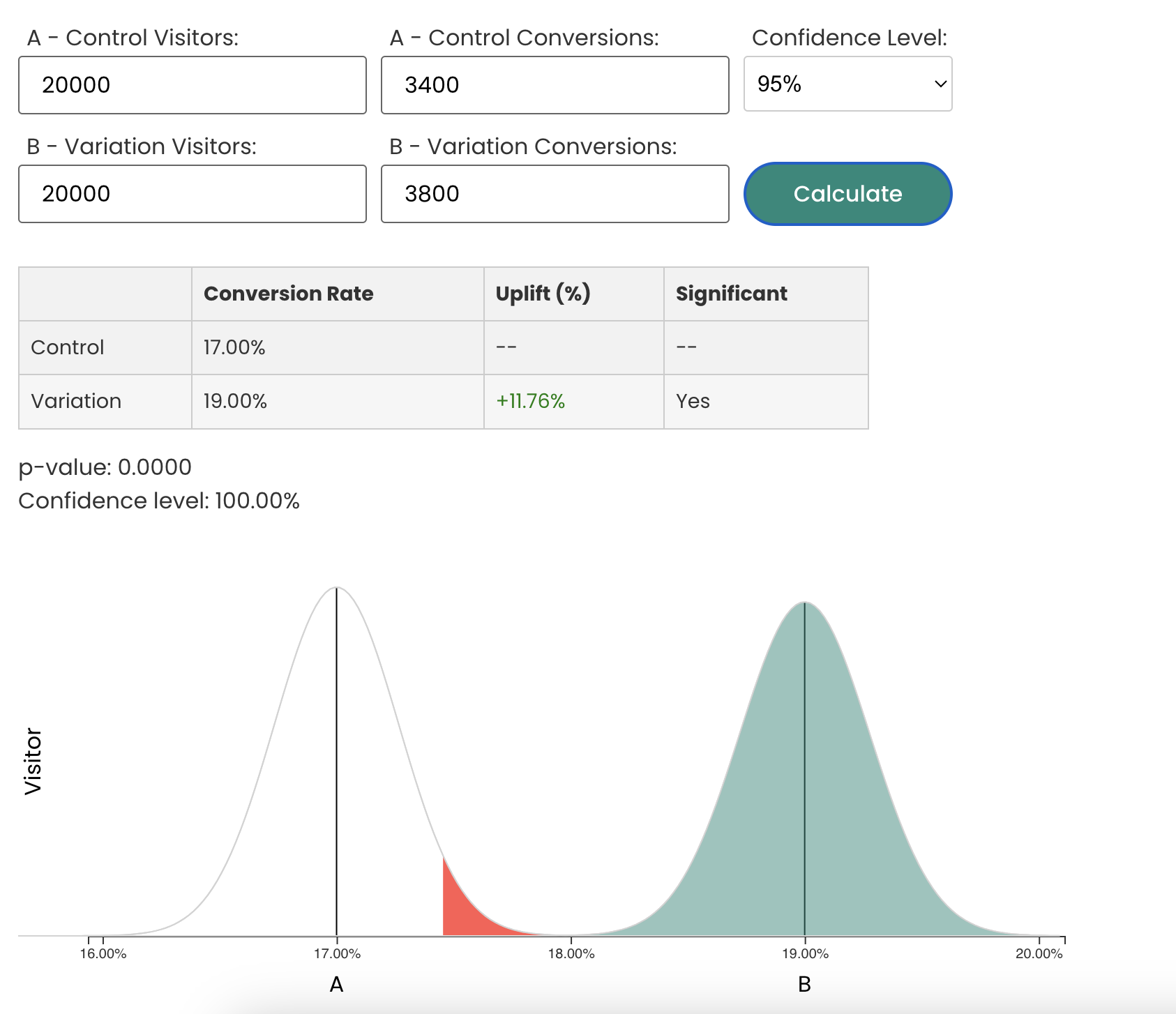
By default, Varify uses a statistical frequentist method to evaluate test results. This involves calculating how likely it is that a difference between the variant and the original occurred by chance. If chance can be ruled out as far as possible, Varify displays the reciprocal of the calculated p-value - the so-called significance. If this is greater than 95 %, the result is displayed as significant in the tool.
Statistical methods at a glance
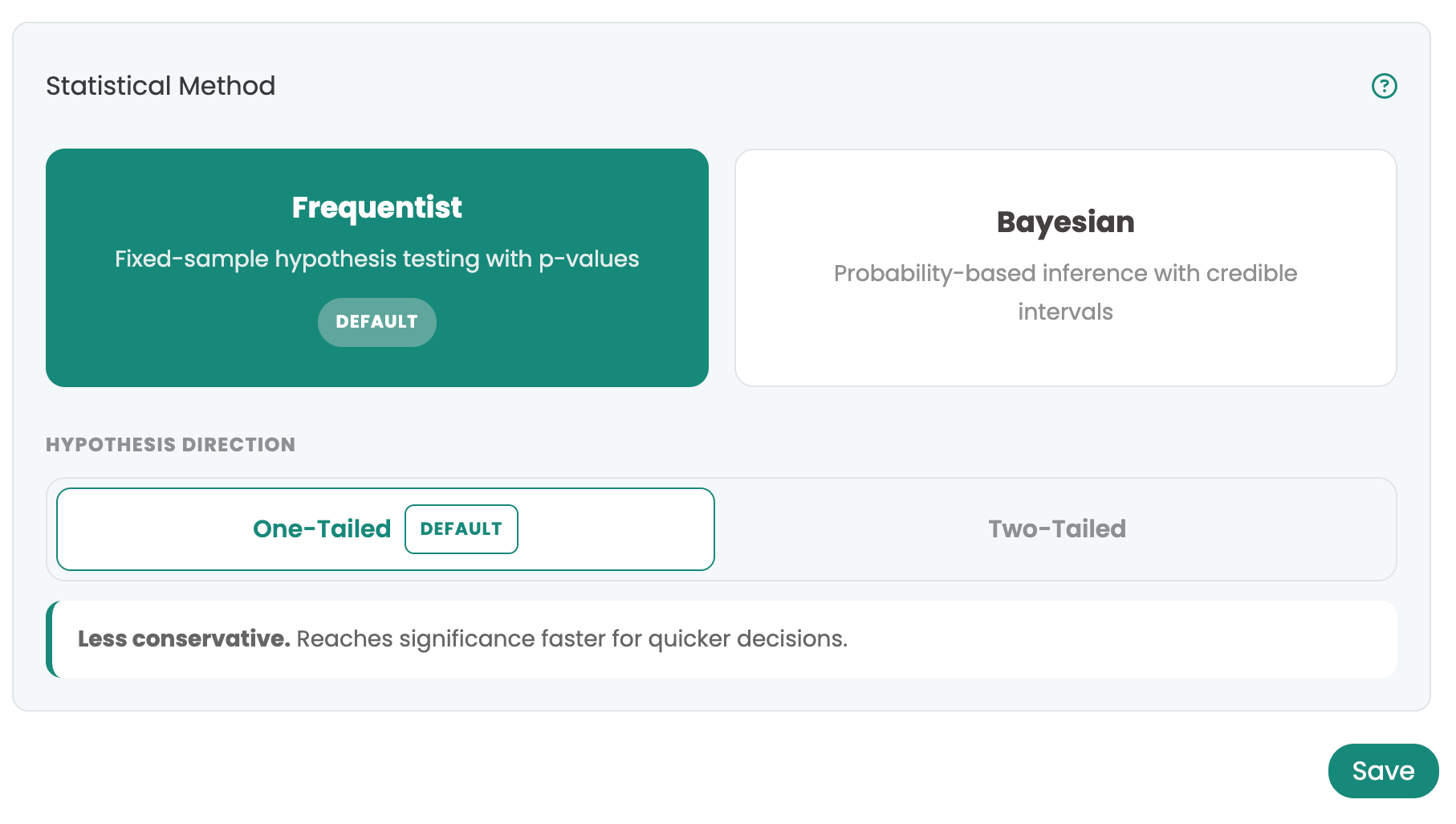
Varify offers three statistical methods for analyzing A/B tests. Which methods are available depends on the selected plan. The method is set centrally at the account level and then applies to all experiments in that account—it cannot be selected on a per-experiment basis. The method can be configured under „Advanced Tracking Setup.“.
One-sided frequentist test (standard)
By default, Varify uses two established one-sided statistical tests:
- A one-sided chi-square test is used for binomial targets (e.g. click rate, conversion rate).
- For sales or value metrics (e.g. average order value, revenue per visitor), a one-sided Student t-test is used.
These one-sided tests were chosen deliberately. They deliver results faster because they calculate less conservatively than two-sided methods. This allows you to see earlier whether one variant is likely to perform better.
Of course, this also has a downside: if a test runs for a very short time or many metrics are evaluated at the same time, the chance of a false positive increases - i.e. a result that appears to be significant, although it was actually just a coincidence.
Two-sided Frequentist Test (Pro Plan)
In Pro Plan, this account setting can alternatively be switched to a two-tailed frequentist method—the change then affects all experiments in the account. The same statistical tests are used (chi-square or Student’s t-test), but in a two-tailed version. The difference: A two-tailed test not only checks whether a variant performs better, but also whether it performs worse. This method is more conservative and generally requires more data to reach statistical significance—but in return, it provides a more robust result in both directions.
Bayesian method (per plan)
The Bayesian method is also available in the Pro Plan. Unlike the frequentist approach, it does not calculate p-values, but a probability that a variant is better than the original. This often makes the results more intuitive to interpret.
An additional advantage: With the Bayesian method, Varify displays a runtime forecast that estimates when 95 % significance is likely to be reached. This allows you to better estimate during the test how long the test should run.
Best practices for reliable results
Regardless of the method you choose, it is better to test a little longer so that the results stabilize and you can judge more reliably whether one variant is really better.
For A/A tests in particular, it is important to add only a few targets. Alpha error accumulation increases the probability of a false positive with each additional metric - i.e. a supposed winner that is not actually a winner.
Best practices for A/A testing:
- Duration: at least 10 days
- At least 500 conversions per variant
- Add a maximum of 3 targets, with a focus on the main KPI
- Significance values that occur in between should be ignored - the final result is what counts. This is the only way to keep the false positive rate low and the results truly reliable.
Own calculation of significance using a significance calculator
Check your A/B test results for significant differences. For this purpose Varify.io provides a significance calculator.