
Matomo - Results analysis
Table of contents
In short
To evaluate your experiments in Matomo, use the segment function. Create separate segments for the original version and the variant and place them next to each other. You can find the instructions for linking Matomo with Varify.io here: Matomo - Integration via Matomo Tag Manager
Create segments
To evaluate your experiment, you can create separate segments for each new experiment, one for the original version and one for the variant, follow these steps:
- Go to the dashboard and click on "All visits", then on "Add new segment".
- Name the first segment, for example, „Experiment ID: Original.“.
- Set the filter. In the first dropdown, select "Events“ > „Event name„.
- The second drop-down menu should be set to „Corresponds to“ must be set to.”.
- In the „Value“ field, enter the following value: „1234:Original" (1234 stands for the corresponding experiment ID, which you can find in the Varify.io dashboard to the right of the experiment)."
Follow the same steps for the variant segment, but name it "Experiment ID: Variant". The value of the filter here should be "1234:1234" (where 1234 stands for the corresponding experiment ID).
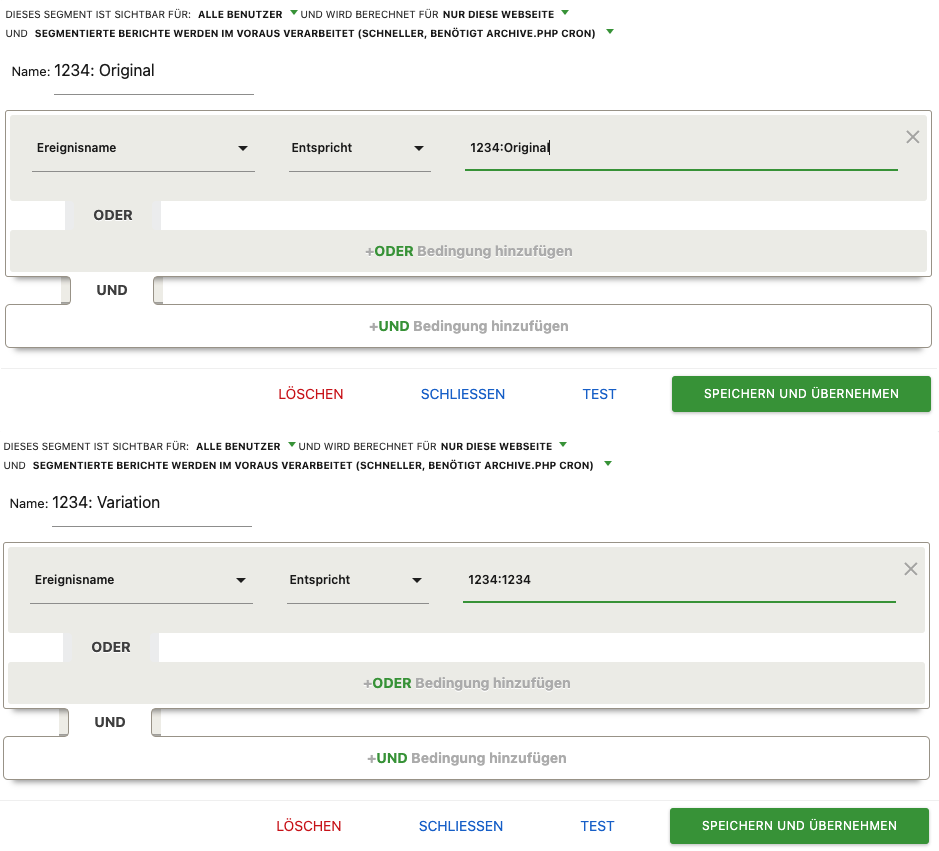
Show segments side by side
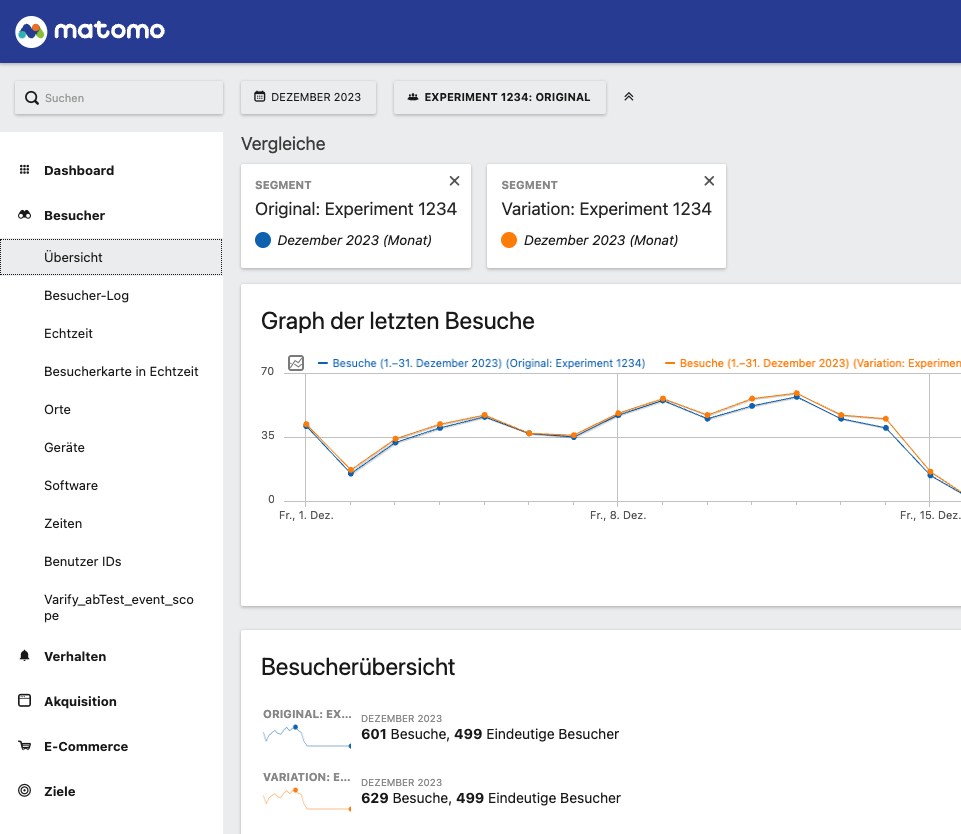
In Matomo, you can display created segments simultaneously. This allows you to evaluate the results in the dashboards and reports at a glance. To add segments to a view, proceed as follows:
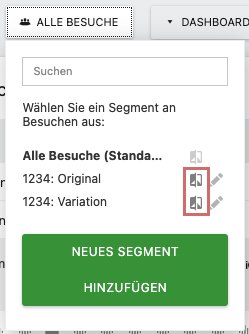
- First, click „All Visitors“ at the top.
- In the window that appears, you will find the segments you have just created. To add a segment to the view, click on the icon to the right of the segment name.
- To add the second segment, open the window again and click on the icon of the other segment.
Both segments are now activated in the view. Optionally, you can close the „All Visitors“ segment.
Test results for significance
Check your A/B test results for significant differences. For this purpose Varify.io provides a significance calculator.