
Set up tracking correctly
Table of contents
How does tracking work?
As soon as a user is in an experiment, Varify sends an event with all relevant parameters (e.g. experiment ID and variant) to the DataLayer of your website.
This event is then recorded via the Google Tag Manager and forwarded to your analytics tool as an event with the corresponding experiment information.
Important: The display of the variant and the tracking event are separated from each other by default. This means that the variant is displayed when the page is loaded, but the associated tracking event is only sent to the DataLayer at a later point in time.
This time is determined by a special Activate Tracking Script in the Google Tag Manager. Only when this script is triggered (e.g. when your tracking tool is fully configured) does Varify allow the events to be pushed to the DataLayer.
How do I set up tracking?
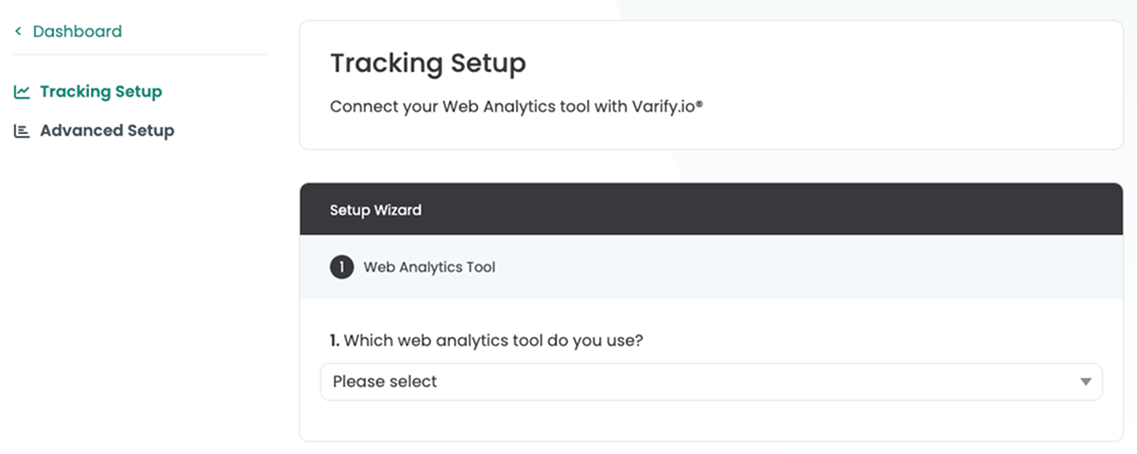
The setup differs slightly depending on the Analytics tool. A tracking setup wizard guides you through the setup step by step
First go to "Go to Tracking Setup" in your dashboard. This link will take you to the Tracking Setup Wizard.

Google Analytics 4
Important for Shopify: If the Google Tag Manager is integrated via a Shopify Custom Pixel, the following tracking integration should be followed: Shopify Custom Pixel Integration via Google Tag Manager
If this is not the case, we recommend one of the following two methods.
Automatic tracking setup
The auto setup is the easiest way to connect GA4 with Varify. A Google Tag Manager container is automatically integrated, which Varify creates and manages for you. This container ensures that all Varify events are reliably sent to your GA4 property.
Manual tracking setup (for experts)
With this setup, you have full control over the setup. Here you set up all the necessary tags, triggers and variables independently in your Google Tag Manager.
Important: We only recommend this method to experts who are familiar with fitting the GTM.
Matomo
The Matomo setup allows you to easily collect and analyze Varify data. The Matomo Tag Manager is integrated into your website to automatically collect all relevant Varify events and analyze them in Matomo.
Piwik Pro (beta)
With the help of the Piwik Tag Manager, you can easily connect Varify.io with Piwik Pro to analyze your experiments. To do this, create the necessary variables, events and a tag to connect Varify.io with Piwik Pro. You can then segment according to your variants in Piwik Pro.
etracker
You can easily link etracker with Varify in two ways. Firstly, there is the "direct integration". Here you can make a tracking setting in Varify to send data directly to etracker.
Alternatively, you can also use a Tag Manager. With this method, you send tracking events directly to etracker via the Tag Manager.