
Troubleshooting - GA4 Audience creation
Table of contents
In short
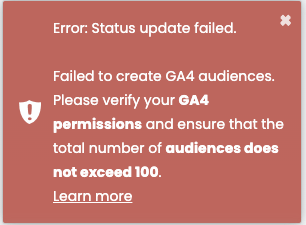
If you see the following error message in your Varify.io® dashboard, then the GA4 audiences could not be created for your experiment. The cause of this is usually very easy to fix.
Error: Status update failed.
Failed to create GA4 audiences. Please verify your GA4 permissions and ensure that the total number of audiences does not exceed 100.
1. the connection to GA4 has been disconnected
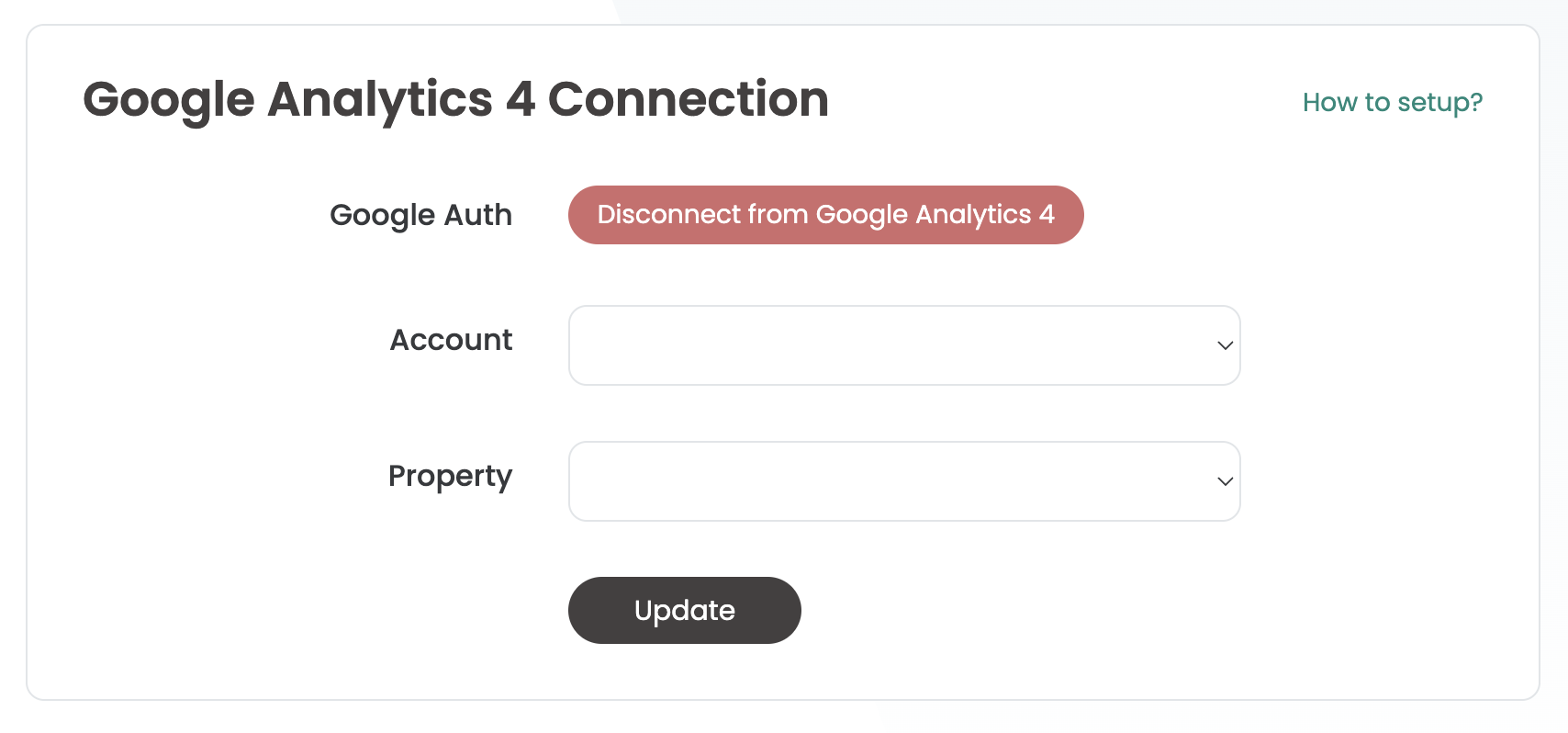
Check whether the connection to GA4 still exists. To do this, switch to the Tracking Setup and then click on GA4 Reporting Integration. If the dropdown fields are empty, first click on "Disconnect from Google Analytics 4". You can then select the previously connected account and the previously connected property again and then click on Update.
2. your GA4 account authorization is too low
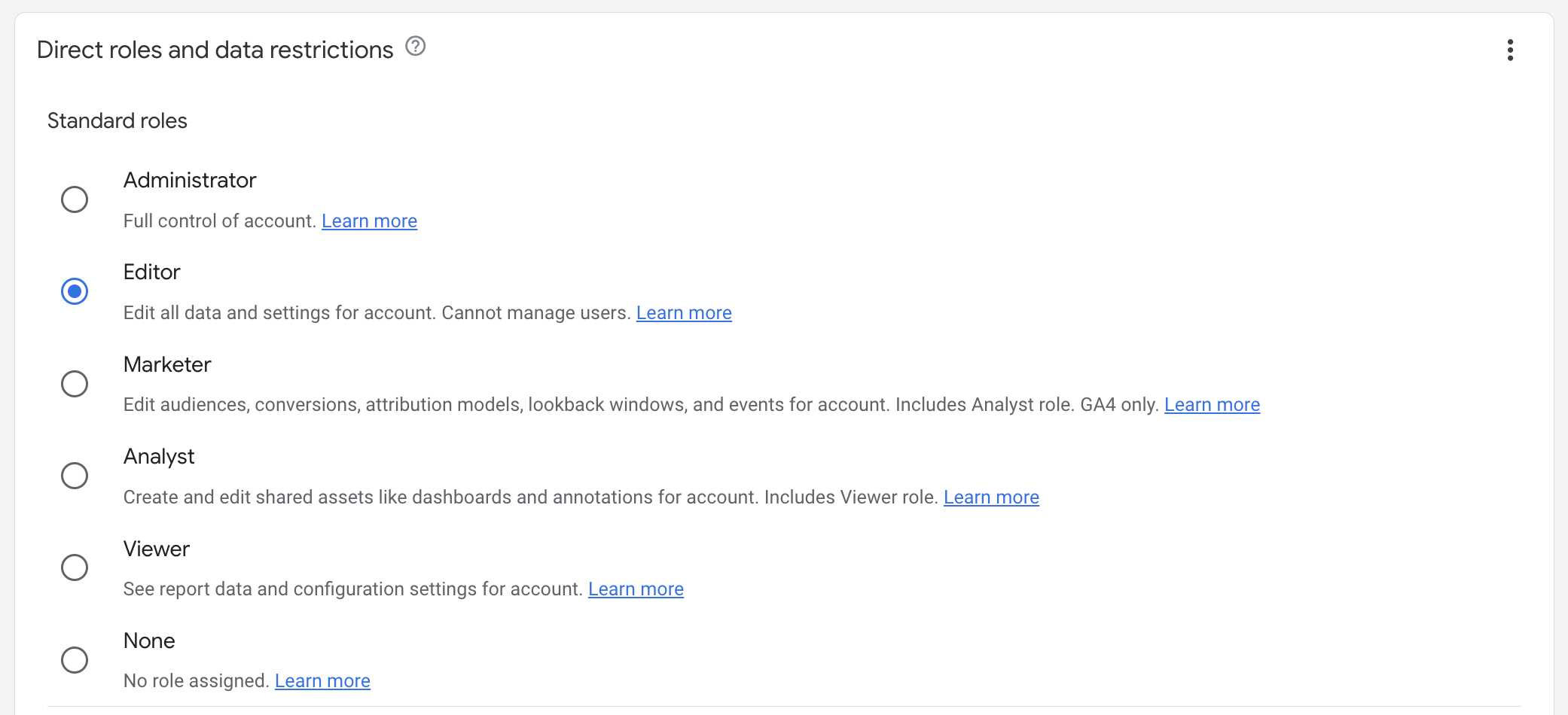
Please make sure that your authorization level in GA4 is at least 'Marketer'. With this authorization, the creation of audiences is permitted.
To ensure that your authorization is at least "Marketers", please contact the administrator of the associated Google property.
3. the maximum number of audiences is > 100
Please note that for every A/B test that you start on Varify.io®, an audience is created for each variant. GA4 allows you to use a maximum of 100 active audiences in total. Therefore, please check under 'Admin Settings > Data Display > Audiences' in GA4 how many active audiences you have already created. If you have activated too many audiences in parallel, you can simply archive audiences that are no longer required. Remember that for A/B tests, an audience only needs to be active for active tests.
After the authorizations have been adjusted, please check in the tracking setup whether Varify.io is still correctly connected to GA4.
First steps
Tracking & web analytics integrations
- Tracking with Varify
- Manual Google Tag Manager tracking integration
- Automatic GA4 tracking integration
- Shopify Custom Pixel Integration via Google Tag Manager
- Shopify Tracking
- BigQuery
- PostHog evaluations
- Matomo - Integration via Matomo Tag Manager
- etracker integration
- Piwik Pro Integration
- Consent - Tracking via Consent
- Advanced Settings
- Tracking with Varify
- Manual Google Tag Manager tracking integration
- Automatic GA4 tracking integration
- Shopify Custom Pixel Integration via Google Tag Manager
- Shopify Tracking
- BigQuery
- PostHog evaluations
- Matomo - Integration via Matomo Tag Manager
- etracker integration
- Piwik Pro Integration
- Consent - Tracking via Consent
- Advanced Settings
Create experiment
Targeting
Reporting & evaluation
- GA4 reporting in Varify.io
- BigQuery
- Segment and filter reports
- Share report
- Audience-based evaluation in GA4
- Segment-based evaluation in GA 4
- PostHog Tracking
- Exporting the experiment results from Varify
- Matomo - Results analysis
- etracker evaluation
- Calculate significance
- User-defined click events
- Evaluate custom events in explorative reports
- GA4 - Cross-Domain Tracking
- GA4 reporting in Varify.io
- BigQuery
- Segment and filter reports
- Share report
- Audience-based evaluation in GA4
- Segment-based evaluation in GA 4
- PostHog Tracking
- Exporting the experiment results from Varify
- Matomo - Results analysis
- etracker evaluation
- Calculate significance
- User-defined click events
- Evaluate custom events in explorative reports
- GA4 - Cross-Domain Tracking
Visual editor
- Campaign Booster: Arrow Up
- Campaign Booster: Exit Intent Layer
- Campaign Booster: Information Bar
- Campaign Booster: Notification
- Campaign Booster: USP Bar
- Add Link Target
- Browse Mode
- Custom Selector Picker
- Edit Content
- Edit Text
- Move elements
- Hide Element
- Keyword Insertion
- Redirect & Split URL Testing
- Remove Element
- Replace Image
- Responsive Device Switcher
- Style & Layout Changes
- Campaign Booster: Arrow Up
- Campaign Booster: Exit Intent Layer
- Campaign Booster: Information Bar
- Campaign Booster: Notification
- Campaign Booster: USP Bar
- Add Link Target
- Browse Mode
- Custom Selector Picker
- Edit Content
- Edit Text
- Move elements
- Hide Element
- Keyword Insertion
- Redirect & Split URL Testing
- Remove Element
- Replace Image
- Responsive Device Switcher
- Style & Layout Changes