
Best Practice Guide
Table of contents
In short
In the Best Practice Guide article, you can find out how to set up and use Varify optimally. We share helpful tips and tricks and show you how we use Varify.io ourselves.
1. varify snippet integration
Place the snippet across all pages in the <head> area of your website. Where the script in the <head> is integrated does not matter. We advise against using the script in the <body> is loaded, as page flickering can then occur when loading the variants.
					<!-- Varify.io® code for YOUR ACCOUNT-->
<script>
window.varify = window.varify || {};
window.varify.iid = YOUR ACCOUNT ID;
</script>
<script src="https://app.varify.io/varify.js"></script>
You can find your individual Varify snippet in your Varify account. Make sure that it contains your account ID so that tracking and variant display work correctly.
Important: Make sure that the script is installed and rendered exactly as you see it in your dashboard. The script must not be cached by other tools such as WP-Rocket.
For agency accounts:
Each client requires its own Varify snippet. You can find the snippet with the corresponding account ID in the dashboard of the respective client.
2. setting up the tracking setup for GA4

Automatic setup
The easiest, most reliable and fastest method to set up the tracking setup for GA4 is the automatic setup. Here, another Google Tag Manager container is created, which sends the Varify events to your specified GA4 property in a pre-configured way. This ensures that the Varify events are sent to GA4 at exactly the right moment.
Start Tracking on Activation Event
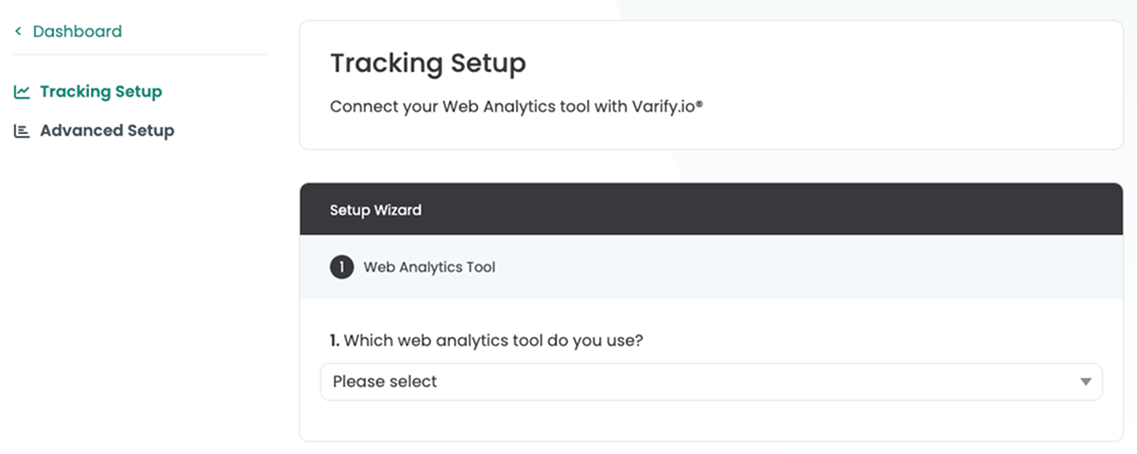
Under Advanced Setup you will find the setting "Start Tracking on Activation Event". This setting is activated by default and ensures that the experiment is delivered separately from tracking.
Separation of experiment delivery and tracking
With the "Start Tracking on Activation Event" setting, you have the option of only executing the tracking of your experiments as soon as the "Varify Activation Script" has been executed. You can already carry out the delivery of the experiments independently of the user consent (this does not constitute legal advice). This means that you load the Varify script without user consent and the GA4 events are only sent after user consent has been received. The permanent assignment of a user to a variant is also only carried out in the tracking process by setting the LocalStorage.
The separation of the experiment delivery from the tracking of the experiment has the great advantage that the variants are already loaded without user consent and you therefore do not see a variant conversion as soon as user consent has been given (page flickering).
Varify Tracking Activation Script
					<script>
  if (window.varify && typeof window.varify.setTracking === 'function') {
    window.varify.setTracking(true);
  } else {
    window.addEventListener('varify:loaded', function () {
      window.varify.setTracking(true);
    });
  }
</script>
We have been using an updated Activate Tracking Script since 29.10.2025.
However, all previously implemented scripts remain valid and continue to function without any adjustments.
Deactivation of the "Start Tracking on Activation Events" when integrating the Varify script into the <body>
If you deactivate "Start Tracking on Activation Event", the tracking events are directly with the experiment delivery in the Data Layer is pushed. This method is only recommended if the Varify script is included in the <body> or was integrated via Google Tag Manager. Otherwise, it is very likely that not all Varify events will arrive reliably in Google Analytics 4.
3. advanced targeting recommendations
To ensure that users continue to be assigned to the same variant of the experiment in the next session, the Local Storage option should be selected in the "User Group Identification" setting. The Session Storage option should only be selected if you are only running personalization or targeting campaigns.
The Data Save Mode (beta) option ensures that the Varify event for any experiment is only sent once per session. Normally, this is always sent as soon as the entry conditions for an experiment are met. It is recommended to leave this setting deactivated when BigQuery is not in use. With BigQuery, costs can be saved by activating the setting.

4. start and evaluate A/A test
Always create an A/A test before you start your first "real" A/B test. This should be carried out on the entire website. This allows you to validate that your tracking is basically working and that you are not measuring any significant differences between the variants.
An A/A test is an A/B test without changes, in which the users are nevertheless divided into two variants. The result should be distributed approximately 50:50.
You can find out how to create an A/A test and check your tracking here: Start an A/A test and check the tracking
Check the experiment delivery and the Varify event in the DataLayer
After your AA test has been started, you should check that your experiment is actually being delivered. The best way to do this is to use the Chrome extension.
If the experiment is not listed in the extension under "Active Experiments", please check the following:
- The Varify script is installed on your site
- Page & audience targeting are correctly defined
As soon as you see your experiment in the Varify Browser Extension under "Active Experiments", check whether the Varify event is displayed in the DataLayer of your website for the active experiment. To the DataLayer check
If you do not see the Varify event from your experiment despite activating the experiment, this could have the following causes:
- The Varify Activate tracking script was not executed
- The Consent Tool blocks the Varify event
5. evaluation of your experiments
Reporting in Varify (Google Signals deactivated)
The easiest way to evaluate your experiments is directly in Varify. As soon as you have authenticated yourself with your Google account in the Tracking Setup Wizard and set the settings, you can use the Varify reports.
Every time you start a new experiment, a results link appears that takes you to the reporting page. A Results link no longer appears for tests that have already been started. These tests can then only be evaluated directly in GA4 on a segment basis. If you also want to evaluate these tests with the internal Varify reports, you can pause, duplicate and restart the corresponding experiment.
You can find out more here: Evaluate experiments in Varify.io
Important: Make sure that Google Signals is deactivated in your GA4 property. Otherwise there may be extrapolations in Google Analytics. If Google Signals is activated, you can use the Segment-based evaluation in GA4. The internal Varify reports should then only be used for monitoring, but should no longer be considered for the final evaluation.
To still be able to use Varify reporting for the final evaluation, you can either deactivate Google Signals or use BigQuery figures in the Varify reports, as these are based on the raw event data instead of the figures from GA4 (BigQuery setup required).

100% Data accuracy with BigQuery
Google Analytics extrapolates some of the collected data, which is why your reports in GA4 and also in the Varify reports are not 100% accurate. A 100% data accuracy is also not necessary for many tests.
To ensure 100% data accuracy, you can evaluate your experiment results with BigQuery. Data is synchronized with BigQuery with just one setting in GA4. The raw data from GA4 is stored in BigQuery. Varify offers an integration that allows you to conveniently evaluate your experiments based on the BigQuery figures using the Varify Report.
You can find out more about evaluation via BigQuery here: BigQuery integration in Varify
Correct evaluation of your A/B test results
Exclude Duplicate User Events in Varify
You can exclude duplicate user events in the reports in Varify. This setting means that an event is counted a maximum of once per user. We generally recommend only evaluating one event per user in your A/B test evaluation, i.e. activating this setting. Excluding duplicate events can greatly improve data quality, especially for events that are repeatedly executed by users (e.g. add to cart).
For revenue goals, we also recommend activating outlier smoothing in order to exclude extremely high and extremely low revenue values when evaluating the test results.
You can find out more here: Segment and filter reports
Segment-based evaluation of A/B test results in GA4
Even with the segment-based evaluation in Google Analytics, it is advisable to carry out the success evaluation of the experiments by counting only one event per user. This can only be carried out in the explorations via a small detour.
This evaluation option is also only available for events. Metrics and key events cannot be evaluated once on a user basis.
Simple evaluation by metrics (not recommended)
The easiest way to create a report in an exploration is to add "Total Users" and the metrics to be analyzed to the report. However, metrics such as events and key events are counted multiple times and can therefore lead to falsifications.

Evaluation by single-counting event per user (recommended)
Add the "Event name" dimension.
Then create a tab in which you only display the number of total users. Duplicate this tab and add a filter which is to be selected according to the event name of the event to be evaluated, for example "add_to_cart" or "purchase".
This setting means that only a maximum of one event is counted per user.

6. ending an experiment
There is an important difference between a “paused” and a “finished” experiment. In a paused experiment, no new test participants are recorded, but the interactions of existing participants, such as “add_to_cart” or “purchase”, are still recorded. An experiment is ended by archiving. From this point on, no more data is collected and the results are permanently saved. Note that an archived experiment cannot be de-archived again. To restart the experiment, you can duplicate the archived experiment.
7. use of the editor
Avoid the "Edit HTML" function
The "Edit HTML" function completely replaces the selected block with the newly created block. This can be problematic if, for example, you have integrated active tracking in this area. This can be broken by the replacement.
Instead of the "Edit HTML" function, use "Add HTML" or JavaScript to make your intended changes.
Do not use the visual editor and JavaScript to modify the same elements
Changes to elements with the visual editor are not only made once, but are checked again and again to see whether the desired change still exists. If this change has been overwritten, Varify attempts to apply this change again. If you try to change the element again with JavaScript at the same time, Varify will try to re-apply the first change made with the visual editor.
So decide whether you want to make changes to an element using JavaScript or with the help of the visual editor.