
How Varify.io works
Table of contents
In short
Varify is an A/B testing platform that allows you to test changes to your website and evaluate them directly via your existing analytics tool.
You can:
Variants visual or create by code
Deliver experiments in a targeted manner
Analyze results in your usual tracking
👉 Special feature:
Varify separates the delivery of experiments and the tracking of results.
This means that variants are loaded immediately, while tracking only takes place when your analytics tool is ready.
This is how an experiment in Varify works
With Varify, you can control experiments completely yourself - from the idea to the evaluation.
An experiment always follows the same procedure:
You create variants
You define targeting rules
You check the setup in QA mode
You start the experiment
Users are automatically assigned to variants
Create variants
Changes directly in the visual editor (WYSIWYG)
or with your own JavaScript and CSS
Several variants per experiment possible
Deliver experiments in a targeted manner
With targeting, you determine exactly when and for whom an experiment is delivered:
Page targeting → on which pages an experiment is running
Audience targeting → which users are addressed
Mutual Exclusion → Prevents overlaps between experiments

Test experiments safely
Before you start, you can set up your experiment in the QA Mode check:
Test variants
Validate targeting
Check display

How users are assigned variants
As soon as a website visitor fulfills all targeting conditions and the experiment is active, they are randomly assigned to a variant.
The distribution follows your defined traffic split, for example 50:50 in a classic A/B test.
If a user has already been assigned to a variant, this assignment remains in place.
This is how the variant assignment is saved
By default, the assignment of a user to a variant is not immediately saved permanently.
As soon as a user fulfills all targeting conditions, they are directly assigned to a variant and see it immediately. However, this assignment is not initially persistent. You can find the settings for this under Advanced setup options.

Temporary storage of the viewed variant of an experiment (optional)
To prevent a user from switching between variants during a session, the assignment can be temporarily saved in the session storage.
This function can be activated via the
„Keep users in variation“ controllable.
👉 Background:
This procedure is often used for data protection reasons.
Permanent storage in local storage only takes place after consent has been given. Until then, the assignment can be temporarily stored in session storage to ensure a consistent user experience.
If the option is activated:
the variant is displayed across sessions
a change during page views is prevented
If the option is deactivated:
There is no temporary storage
the variant displayed may be different for each page view
👉 Result:
You can control whether users remain consistently assigned to a variant even without consent or whether the assignment is made anew each time the page is accessed.
Permanent storage (local storage)
Permanent storage in Local Storage only takes place once the Varify Activation Tracking Tag has been executed.
Only then:
the variant assignment is saved persistently
the assignment is also retained for future visits
👉 In practice, the activation tag is usually only triggered once the user has given their consent.
👉 This ensures that long-term allocation only takes place when tracking is permitted and active.
Tracking & Evaluation
Varify uses your existing analytics tool to analyze your experiments.
Unlike many other A/B testing tools, Varify does not use its own tracking system. Instead, Varify sends events with the required experiment and variant information to your analytics tool. You can find more information here here.
👉 Important:
Tracking is only triggered when your analytics tool is ready or allowed to receive data (e.g. after consent).
Advantages
Single Source of Truth
No duplicate tracking hits
No additional tracking costs
Use of your existing reports and targets
Import data from your web analytics tool
Varify has deep integrations with the following web analytics tools to import and analyze the results of your A/B tests:
For other web analytics tools, Varify sends tracking events so that the A/B tests evaluated directly there can be used.

Why Varify separates delivery and tracking
Varify separates experiment delivery and tracking by default, which is why a separate tracking setup is required in most cases.
Why the delivery works separately
- Experiments can be delivered as soon as the page is loaded, regardless of the status of your tracking tool.
- If the snippet is integrated into head tag the of your website, experiments are initialized even faster and are delivered before GTM — without flickering.
Why tracking is triggered separately
Tracking is only triggered when your analytics tool is ready to receive data.
This is the case, for example:
after complete initialization of the tool
or after consent has been granted
👉 This keeps your tracking clean, controllable and compliant with data protection regulations.
Technical implementation
To separate delivery and tracking, Varify works with two separate setups.
Varify Snippet (delivery)
loads the editor
delivers experiments from
Assigns users to variants
pushes tracking events into the DataLayer (after execution of the Tracking Activation Script)
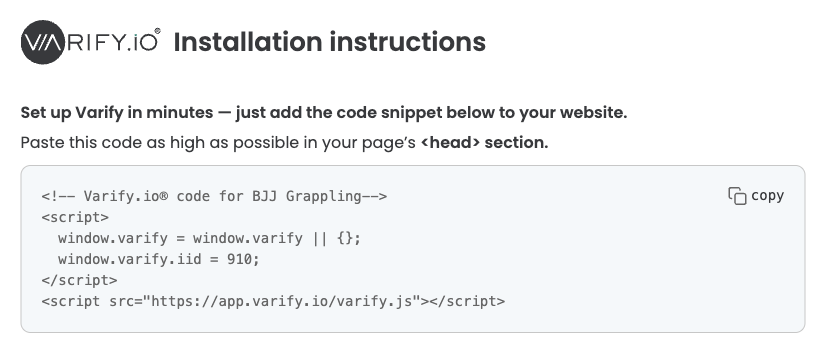
Varify Tracking: Trigger tracking and link it to the analytics tool
Tracking is usually set up via the Google Tag Manager. (Provided GA4 is used as a web analytics tool) -> Tracking setup
Varify Activation Tag
gives the snippet approval for tracking
allows writing to the local storage
- More information here
Varify Tracking Linker Tag
picks up DataLayer events
sends them to your analytics tool
