
Prompt Based Experiments (PBX)
In short
With the help of Prompt Based Experiments (PBX), experiments can be created directly in the visual editor with the help of AI. Simply describe to the AI what you want to test and the AI creates the changes directly. For developers: The AI delivers javaScript code that can be adapted directly.
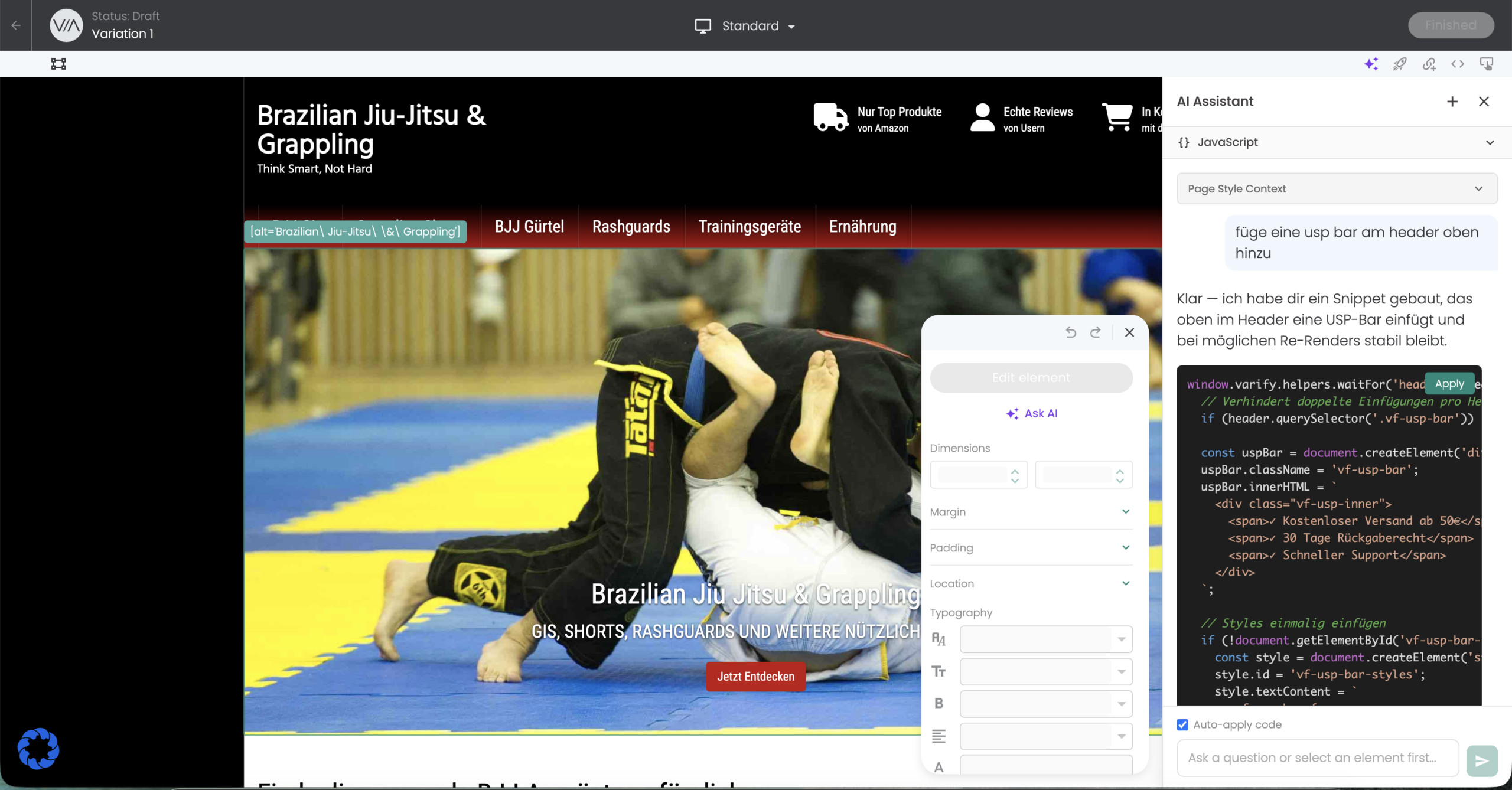
How to use the function
Create a new experiment or edit an existing one. The visual editor then opens.
There you will find the PBX feature both at the top of the navigation bar in purple below the „Finished“ button and in the floating editor below the „Edit Element“ button labeled „Ask AI“.
If you click on one of the two buttons, a disclaimer opens first. This indicates that data is processed by one of the LLMs mentioned and that no personal data should be entered.
You can then enter your test idea or change request in the AI Assistant. If you also select an element before entering it, you give the AI the context of which element your description refers to.
AI Credits
Tokens are consumed with every use. The more text input and code output is generated, the higher the consumption.
For example, very few tokens are required if you only want to change the color of a button. Significantly more tokens are required if you request complex changes, such as the integration of a completely new module.
In the trial version, 40,000 tokens are available to you free of charge as standard. As soon as these have been used up, you are welcome to contact our support team if you need more credits. Simply send us a short e-mail to [email protected].
First steps
Tracking & web analytics integrations
- Tracking with Varify
- Manual Google Tag Manager tracking integration
- Automatic GA4 tracking integration
- Shopify Custom Pixel Integration via Google Tag Manager
- Shopify Tracking
- BigQuery
- PostHog evaluations
- Matomo - Integration via Matomo Tag Manager
- etracker integration
- Piwik Pro Integration
- Consent - Tracking via Consent
- Advanced Settings
- Tracking with Varify
- Manual Google Tag Manager tracking integration
- Automatic GA4 tracking integration
- Shopify Custom Pixel Integration via Google Tag Manager
- Shopify Tracking
- BigQuery
- PostHog evaluations
- Matomo - Integration via Matomo Tag Manager
- etracker integration
- Piwik Pro Integration
- Consent - Tracking via Consent
- Advanced Settings
Create experiment
Targeting
Reporting & evaluation
- Reporting in Varify.io
- BigQuery
- Segment and filter reports
- Share report
- Audience-based evaluation in GA4
- Segment-based evaluation in GA 4
- PostHog Tracking
- Exporting the experiment results from Varify
- Matomo - Results analysis
- etracker evaluation
- Calculate significance
- User-defined click events
- Evaluate custom events in explorative reports
- GA4 - Cross-Domain Tracking
- Reporting in Varify.io
- BigQuery
- Segment and filter reports
- Share report
- Audience-based evaluation in GA4
- Segment-based evaluation in GA 4
- PostHog Tracking
- Exporting the experiment results from Varify
- Matomo - Results analysis
- etracker evaluation
- Calculate significance
- User-defined click events
- Evaluate custom events in explorative reports
- GA4 - Cross-Domain Tracking
Visual editor
- Campaign Booster: Arrow Up
- Campaign Booster: Exit Intent Layer
- Campaign Booster: Information Bar
- Campaign Booster: Notification
- Campaign Booster: USP Bar
- Add Link Target
- Browse Mode
- Custom Selector Picker
- Edit Content
- Edit Text
- Move elements
- Hide Element
- Keyword Insertion
- Redirect & Split URL Testing
- Remove Element
- Replace Image
- Responsive Device Switcher
- Style & Layout Changes
- Campaign Booster: Arrow Up
- Campaign Booster: Exit Intent Layer
- Campaign Booster: Information Bar
- Campaign Booster: Notification
- Campaign Booster: USP Bar
- Add Link Target
- Browse Mode
- Custom Selector Picker
- Edit Content
- Edit Text
- Move elements
- Hide Element
- Keyword Insertion
- Redirect & Split URL Testing
- Remove Element
- Replace Image
- Responsive Device Switcher
- Style & Layout Changes