
Tracking with Varify.io
Table of contents
In short
Under A/B Testing Options, you set up the tracking of your experiments with the Tracking Setup Wizard. Here you specify which web analytics tool is used to evaluate your A/B test results.
The wizard guides you through the setup and helps you to select the right option.
How does tracking work?
As soon as a user has been assigned to an experiment as a test participant, Varify generates an event with all relevant tracking parameters (e.g. experiment ID and variant).
This event is then transmitted to your web analytics tool, for example via the Google Tag Manager or via a direct integration.
Important: The delivery of the experiment and the tracking are separated from each other by default. This means that the variant can already be visible when the page is loaded, but the associated tracking event is only sent to the DataLayer later.
The time is defined via an Activate Tracking Script (usually in Google Tag Manager). Only when this script is triggered does Varify send the tracking events to your web analytics tool, for example after the tracking setup has been fully initialized or as soon as user consent has been given.
You can find more details in the article „How Varify.io works".
How do I set up tracking for my web analytics tool?
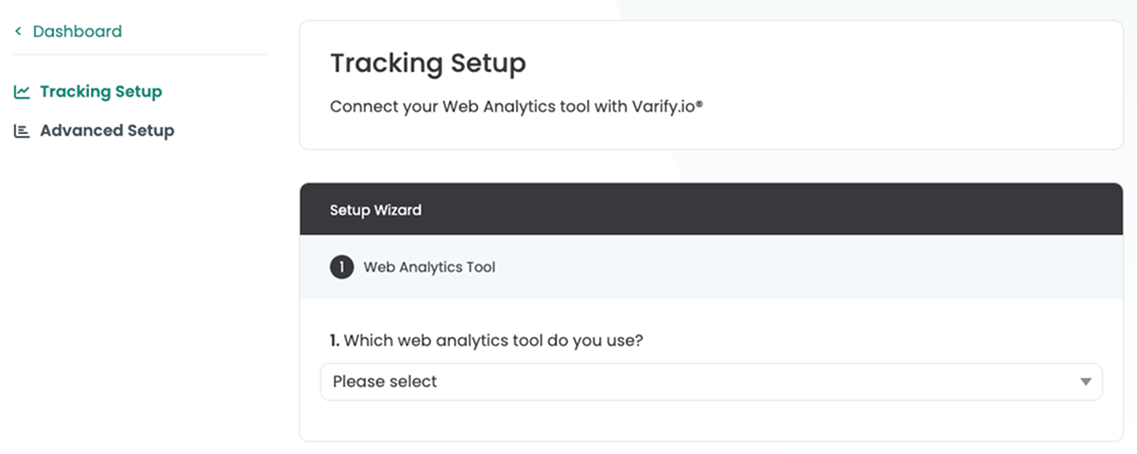
The setup differs depending on the web analytics tool used. A tracking setup wizard guides you through the setup step by step.
To do this, go to „Go to Tracking Setup“ in your dashboard under Qick Links. The link opens the Tracking Setup Wizard.
In the wizard, you first select your web analytics tool. The wizard then guides you through the entire setup process.

This interactive finder will guide you to the right Varify tracking setup. Choose your platform and your web analytics tool, and we'll show you the exact setup.
1. which platform does your website/online store use?
2. which web analysis tool do you use?
Select your tool to get the right tracking setup for the Varify.io setup.
3. how have you integrated the Google Tag Manager into your Shopify store?
In many Shopify stores, the Google Tag Manager is integrated via a so-called custom pixel. Please check how the GTM is integrated in your store.
4. how is your Google Tag Manager operated?
Choose whether your GTM setup runs classically on the client side in the browser or as a server-side container.
3. how is your Google Tag Manager operated?
Choose whether your GTM setup runs classically on the client side in the browser or as a server-side container.
Matomo Tracking Integration
Here you can find all information about the Matomo Tracking Integration.
To the Matomo tracking setupetracker Tracking Integration
Here you can find all information about the etracker tracking integration.
To the etracker tracking setupPiwik Pro Tracking Integration
Here you can find all information about the Piwik Pro tracking integration.
To the Piwik Pro tracking setupPostHog Tracking Integration
Here you can find all information about the PostHog Tracking Integration.
Go to PostHog Tracking SetupGoogle Analytics 4 Tracking Integration
Here you can find all information about the Google Analytics 4 tracking integration.
To the automatic GA4 tracking setupTo the manual GA4 tracking setup
GA4 setup with server-side GTM
For server-side tracking, we only recommend manual setup.
To the manual GA4 tracking setupGoogle Analytics 4 Tracking integration in Shopify
Here you can find all information about the Shopify + GA4 tracking integration.
To the automatic GA4 tracking setupTo the manual GA4 tracking setup
Google Analytics 4 Tracking integration in Shopify with server-side GTM
For server-side GTM setups in Shopify, we recommend the manual setup.
To the manual GA4 tracking setupGoogle Analytics 4 Tracking integration in Shopify with GTM as custom pixel
You can find the right instructions for Custom Pixel implementations here.
To the Shopify Custom Pixel Tracking SetupGoogle Analytics 4 Tracking integration in Shopify without GTM
Here you can find the automatic setup for GA4 without Google Tag Manager.
To the automatic GA4 tracking setupGoogle Analytics 4 Tracking integration without GTM
Here you can find the automatic setup for GA4 without Google Tag Manager.
To the automatic GA4 tracking setupTracking options at a glance
Important: Depending on the setup of your website and the integration of Google Tag Manager, not all tracking options are possible. The Tracking Setup Wizard will automatically suggest the appropriate options for your setup.
Google Analytics 4
Which Google Analytics 4 setup is right for me?
Various methods are available for tracking integration with GA4. (Automatic, manual, Shopify Custom Pixel)
Important for Shopify: If the Google Tag Manager is integrated via a Shopify Custom Pixel, the following tracking integration should be followed: Shopify Custom Pixel Integration via Google Tag Manager
If this is not the case, we recommend the automatic or manual tracking setup.
Automatic tracking setup
The auto setup is the easiest way to connect GA4 with Varify. A Google Tag Manager container created by Varify is automatically integrated into your page via the Varify script. This container ensures that all Varify events are reliably sent to your GA4 property.
If you have integrated the server-side Google Tag Manager or the Google Tag Manager via the Shopify Custom Pixel, please use the manual tracking setup.
Manual tracking setup
With this setup, you have full control over the setup. Here you set up all the necessary tags, triggers and variables independently in your Google Tag Manager.
Important: If you also use the server-side Google Tag Manager, the Varify events must also be passed on to GA4 in the server-side Google Tag Manager.
Do not use this integration if you have integrated Shopify via the Custom Pixel.
Connect Google Analytics 4 Property
When tracking with Google Analytics 4, you can visualize the results directly in Varify Reporting. To do this, a connection to the appropriate GA4 property must be established once in the tracking setup via a linked Google account. This Google account requires at least Editor rights in the GA4 property for the setup and configuration to work correctly.
Certain Google scopes are required for the connection with Google Analytics 4 and BigQuery so that the functions can be provided reliably and automatically. You can find an overview of the required scopes here.
Show required scopes
analytics.edit
Required to create and delete GA4 audiences programmatically and to create or manage BigQuery links as part of the automatic BigQuery setup.
analytics.readonly
Is required to run GA4 reports and read analytics data. This scope enables read-only access to analytics data.
bigquery
Required for automatic BigQuery setup, updating datasets and creating and executing BigQuery jobs. These jobs are used to calculate BigQuery reports and retrieve their results.
cloud platform
Is required for the BigQuery Auto Setup to create Google Cloud projects and activate the required Google services (e.g. BigQuery APIs) within these projects.
Shopify Custom Pixel Integration
If you have integrated the Google Tag Manager on your site via the Shopify Custom Pixel, then select the option "Google Analytics 4 (Shopify Custom Pixel Integration)". This is important as the data is then not sent directly to the top level of your website, but is loaded in a separate iframe.

Shopify Tracking
Varify offers a special logic that allows you to evaluate your A/B test results directly on the basis of your Shopify figures. The experiment data is transmitted to Varify after the purchase and displayed in the report of the respective experiment.
Important: This Shopify tracking only works in combination with the Google Analytics 4 tracking setup. The prerequisite is therefore a correctly set up and functioning GA4 tracking with Varify.
PostHog Tracking
Evaluate your Varify experiments directly with PostHog data. Varify sends an event to PostHog. Accordingly, you can either evaluate your A/B tests directly in PostHog or directly in the report of your experiment directly in Varify.
Matomo
The Matomo setup allows you to easily collect and analyze Varify data. The Matomo Tag Manager is integrated into your website to automatically collect all relevant Varify events. You evaluate the A/B test results directly in Matomo.
Piwik Pro
With the help of a tag manager, you can send Varify events directly to Piwik to analyze your experiments. To do this, create the necessary variables, events and a tag to connect Varify with Piwik. You can then segment according to your variants in Piwik.
etracker
You can easily link etracker with Varify in two ways. Firstly, there is the "direct integration". Here you can make a tracking setting in Varify to send data directly to etracker.
Alternatively, you can also use a Tag Manager. With this method, you send tracking events directly to etracker via the Tag Manager.
Mixpanel, Piano, Snowplow, (Tealium) and other web analytics tools
If you use one of the web analytics tools mentioned, please contact [email protected] and we will be happy to help you connect your web analytics tool with Varify.