
Run Varify straight from
your AI assistant.
The Varify MCP connects Claude to your Varify account. Create experiments, set targeting and traffic, and read results in plain language, without opening a single settings screen.
- Works with
- Claude
- Claude Code
- ChatGPT
- Cursor

From one sentence to a live test
Watch Claude set up an A/B test in Varify, from the first prompt to the running experiment.
Everything you do in Varify, now in a sentence
Tell Claude what you want to test. The Varify MCP turns it into the right actions in your account.
-
Create and manage experiments
Create new experiments with their variations, then edit, duplicate, pause or archive existing ones.
-
Split traffic
Adjust the traffic allocation between variations whenever you need to.
-
Set the targeting
Define page and audience targeting, for example by URL, device, browser or UTM parameters.
-
Switch tracking on or off
Turn tracking on or off for each experiment, as the test needs it.
-
Read the results
With GA4 connected, ask for results in the chat, including daily reports and revenue analyses from your GA4 data.
-
Every client at a glance
Working as an agency? Get an overview of all client accounts you manage in your agency account.
Just type what you want to test
Describe it in your own words. The Varify MCP does the rest.
- How did the pricing test do yesterday?
- Set the homepage hero test to 80/20.
- Duplicate the checkout test for desktop only.
- Which tests are live across my clients?
- Pause every test targeting the newsletter UTM.
- Turn off tracking for the staging test.
Connect Varify MCP in two steps
Switch the MCP on in Varify, then add it to your AI tool. No API key to copy, no code to write.
-
Switch on the MCP in Varify
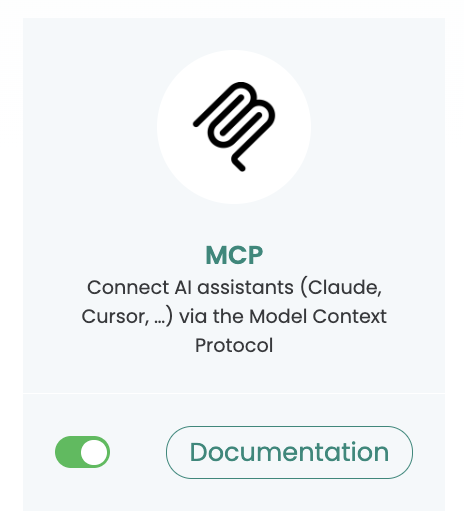
In your Varify account, open „Connectors“ and switch on the Varify MCP.
-
Add it to your AI tool
Use the server URL below, then log in to Varify and grant access.
- ClaudeVarify is listed in Claude's connector directory: browse the connectors in Claude, pick Varify and click „Connect“. You can also connect by URL: open Settings › Connectors, click „+“ › „Add custom connector“ and enter:
https://app.varify.io/mcp - Claude CodeRun one command in your terminal:
claude mcp add --transport http varify https://app.varify.io/mcp
- Open Settings › Apps & Connectors › Advanced Settings and turn on „Developer Mode“.
- In the Connectors view, click „Create“.
- Enter the server URL:
https://app.varify.io/mcp - Give it a name and description, then save the connector.
- Open Cursor Settings › MCP and click „Add new MCP server“. This opens your
mcp.json. - Add Varify with its server URL:
"varify": { "url": "https://app.varify.io/mcp" } - Save, then log in to Varify when Cursor asks and grant access.
- ClaudeVarify is listed in Claude's connector directory: browse the connectors in Claude, pick Varify and click „Connect“. You can also connect by URL: open Settings › Connectors, click „+“ › „Add custom connector“ and enter:
You stay in control
Your login, your approval, your accounts. The assistant only does what you allow.
Permissions
You decide what the assistant may do
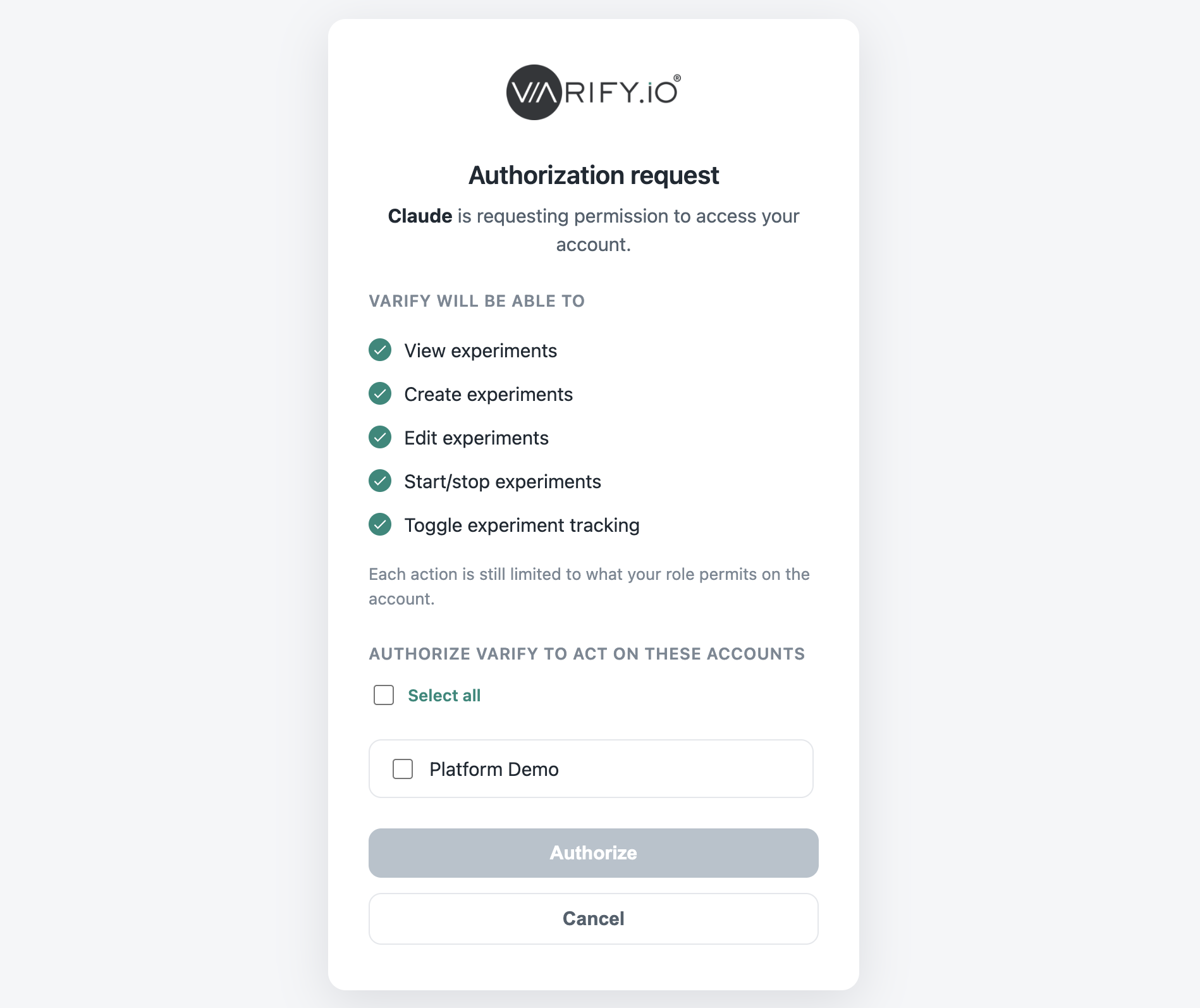
When you connect, you log in to Varify yourself and approve the access. You choose which accounts the assistant may act on.
Same API
Built on the Experiment API
The MCP uses the same Experiment API you can use for your own integrations.
Results
Your numbers, from GA4
Reports come from your connected GA4 data, so the chat shows what your analytics shows.
Agencies
One chat for every client
Manage experiments for every client in your agency account from the same conversation.
See the Varify MCP in action.
Choose how you want to get started.
30 minutes with a CRO expert, live on your site.
- We set up a first experiment from the chat together
- You see results read straight from your data
- A clear answer on whether the MCP fits your workflow
Prefer to try it yourself? Add the snippet and connect your AI tool.
- Full feature access for 15 days
- No credit card required
- Set up in minutes
GDPR-compliant · cookie-less · hosted in the EU · See which plans include the MCP