
Adobe Analytics Integration
Table of contents
In short
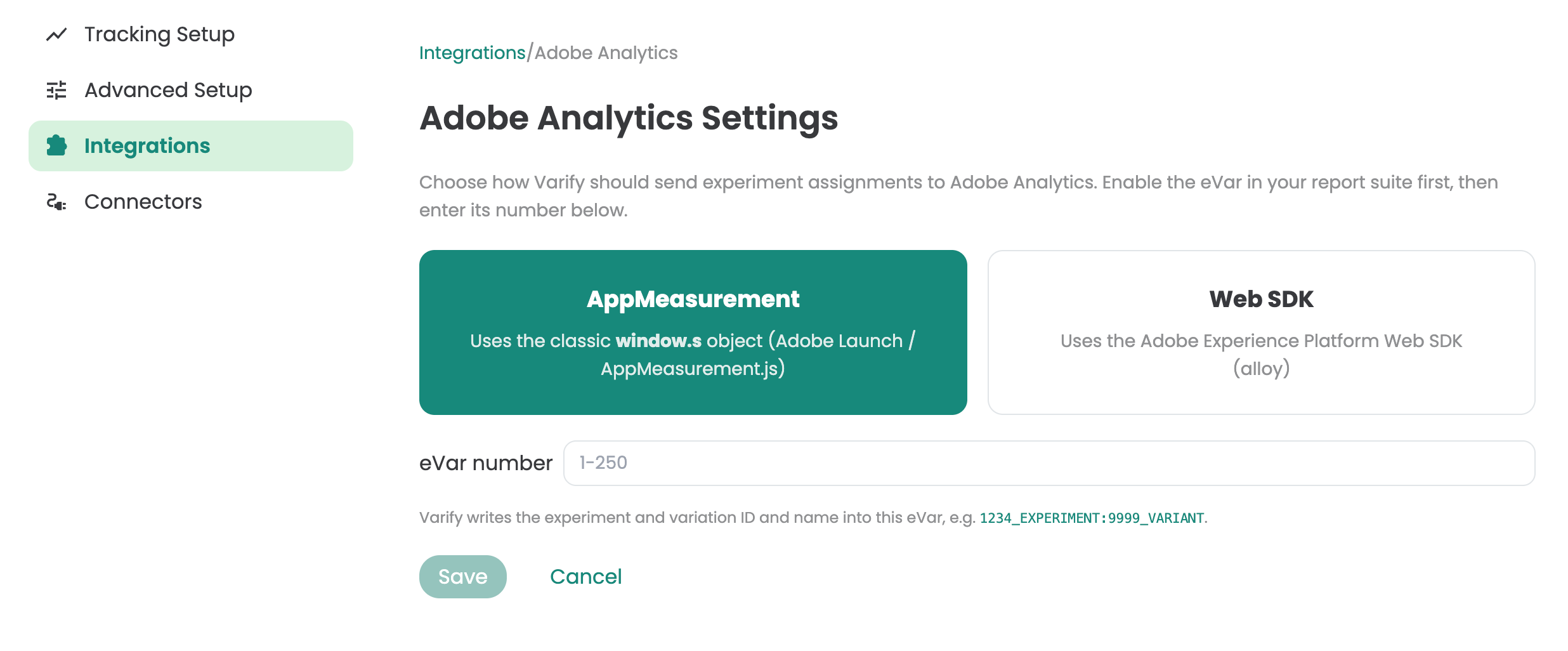
There are two easy ways to connect Adobe Analytics to Varify. Choose whether you want Varify to send experiment assignments to Adobe Analytics via the AppMeasurement protocol or via the WebSDK.
Select an integration method
First, specify how Varify should send the data to Adobe Analytics:
- AppMeasurement – the traditional method using the
window.s-Object (Adobe Launch / AppMeasurement.js) - Web SDK – the newer method using the Adobe Experience Platform Web SDK (alloy)
Here's how to find out which method applies to you:
- Open your browser's developer tools (F12) on your website and look in the Network Tab based on requests to Adobe.
- Do you see requests to a URL with
/b/ss/(e.g.,.https://[dein-report-suite].sc.omtrdc.net/b/ss/...), you use AppMeasurement. - Do you see requests to a URL with
/ee/oredge.adobedc.netor your own first-party domain via the Adobe Edge Network, you use the Web SDK. - Alternatively, you can ask your tag management or analytics administrator which implementation is configured in the Adobe Launch property.
If you're unsure: AppMeasurement is the more common choice for older or traditional Adobe Analytics implementations, Web SDK is typically used in newer setups with the Experience Platform.
Enter the eVar number
In Adobe Analytics, you can find the eVar number as follows:
- Go to the Adobe Experience Platform resp. Analytics Admin Console zu Admin → Report Suites.
- Select the appropriate report suite.
- Click on Conversion → Conversion Variables (eVars).
- There, you'll see a list of all eVars with their respective numbers (e.g., „eVar12") in the first column, along with their names and settings.
If you're using the newer Analytics interface within the Experience Platform If you use it, you'll find the same section under Components → Report Suites → [Your Suite] → Conversion Variables.
The number you need for Varify is exactly this eVar number (for example, the „12“ in „eVar12“).